Install with a QR code
2 min read
Use this when you are on a computer: open the QR from your email on the screen and scan it with your phone. Stay on Wi-Fi while it installs.
1
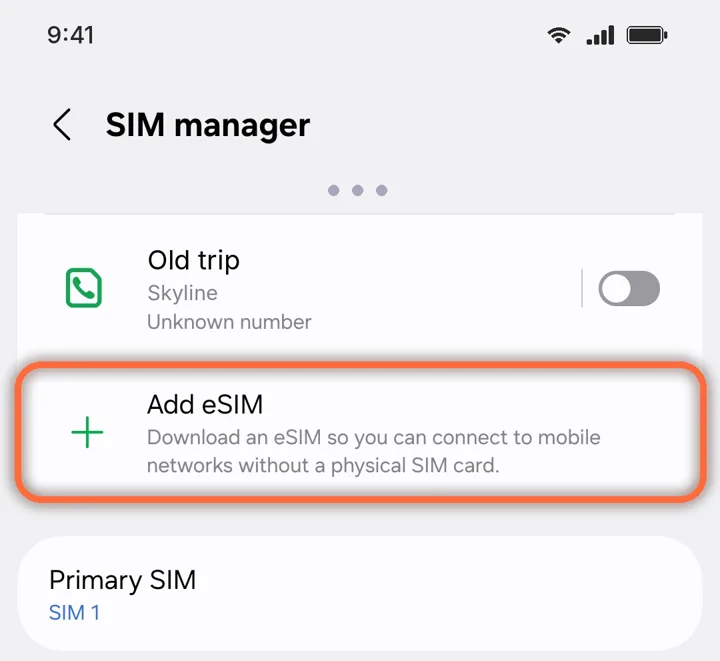
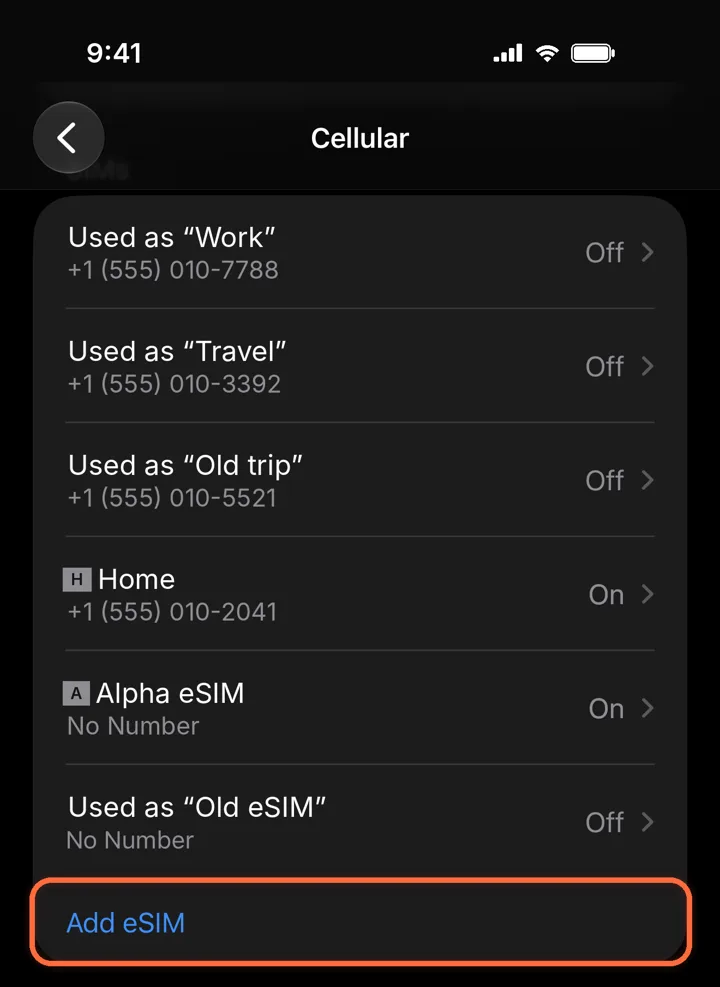
Open Add eSIM
Settings›Cellular›Add eSIM
Scroll down to the end of your SIMs and tap Add eSIM. On some iPhones the menu is called Mobile Service.
2
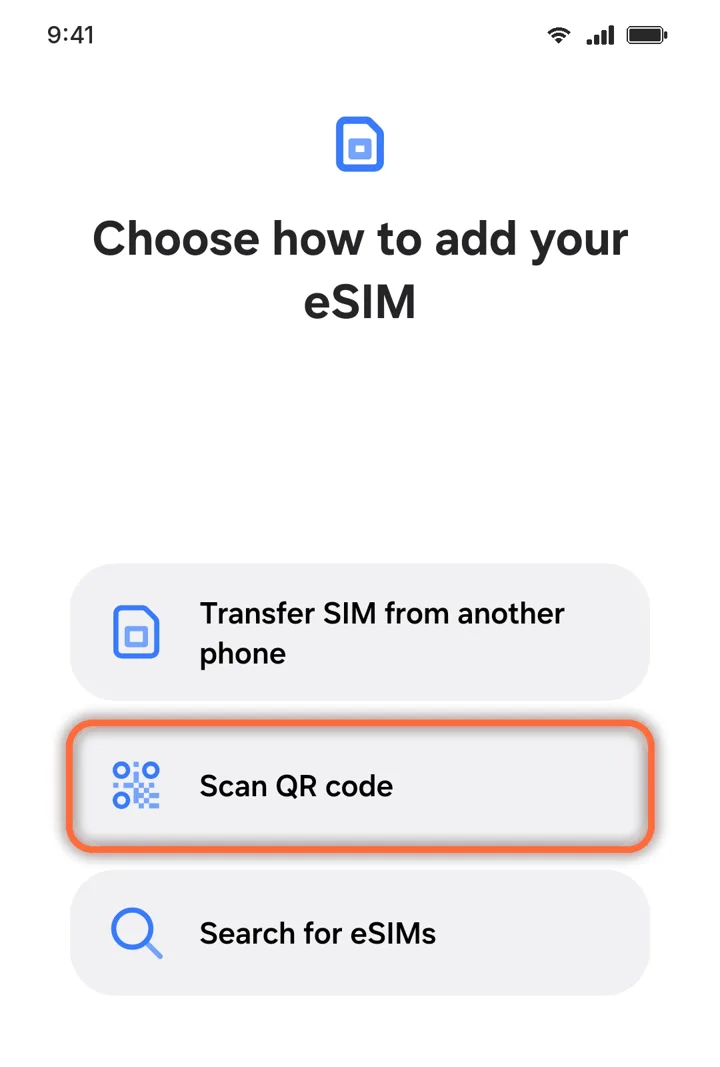
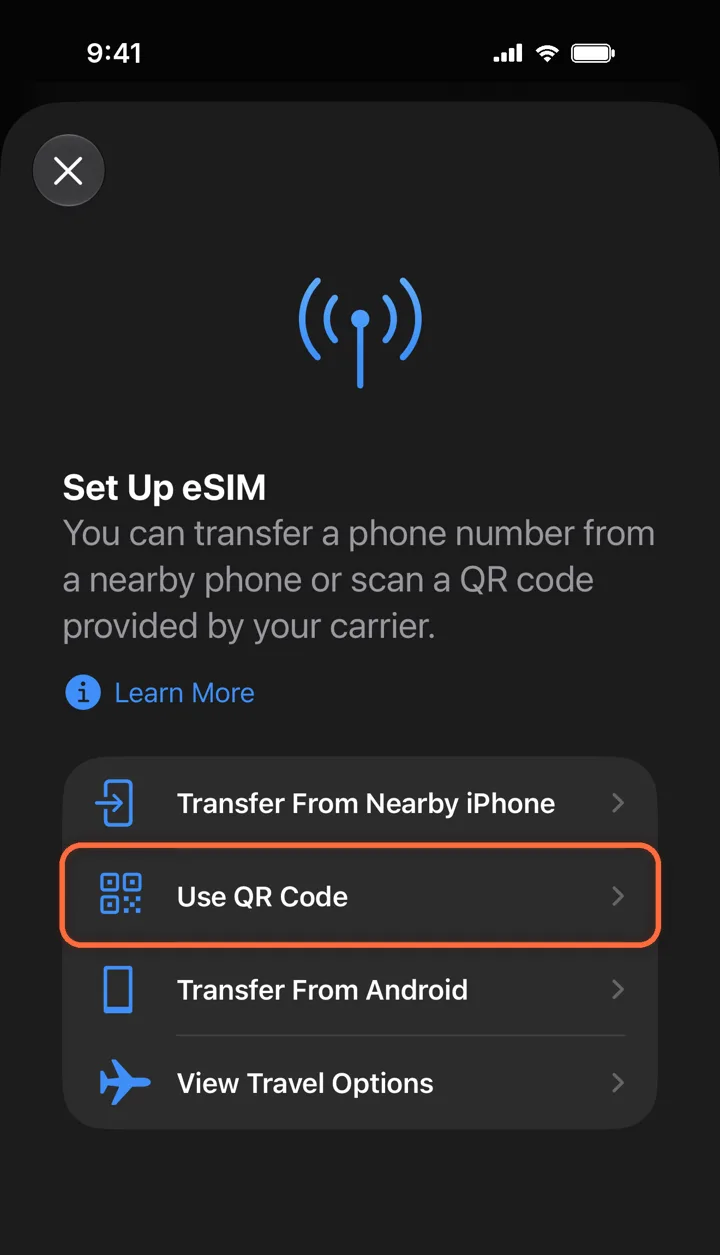
Choose Use QR Code
Set Up eSIM›Use QR Code
Point the camera at the QR code. Tap Continue and wait about a minute.
3
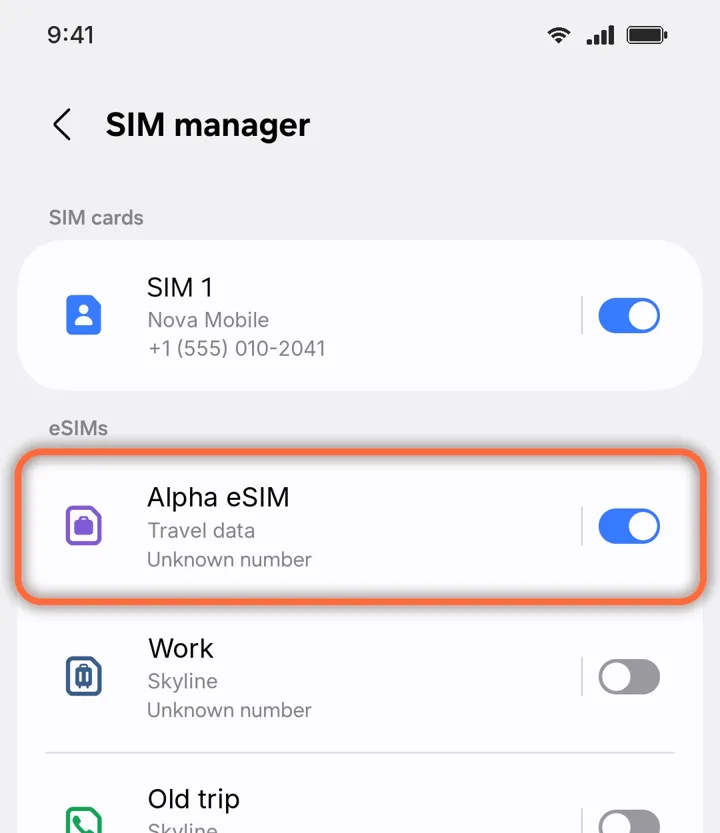
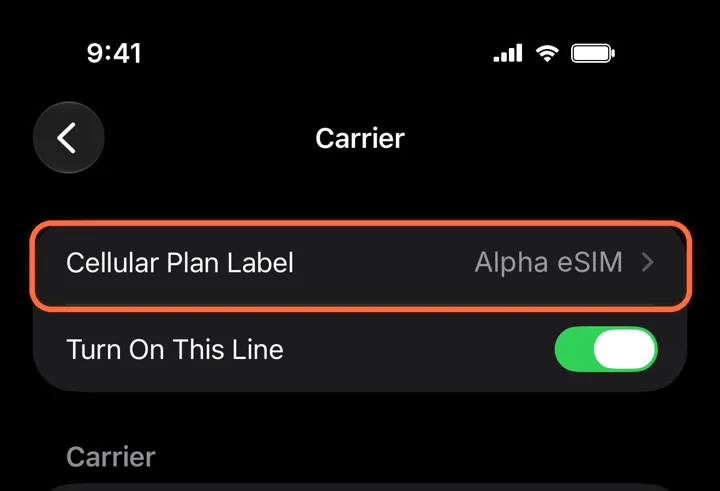
Name it and pick your lines
Cellular Plan Label›Alpha eSIM
Label the new line Alpha eSIM so it is easy to find. Keep your home line for calls and texts.
4
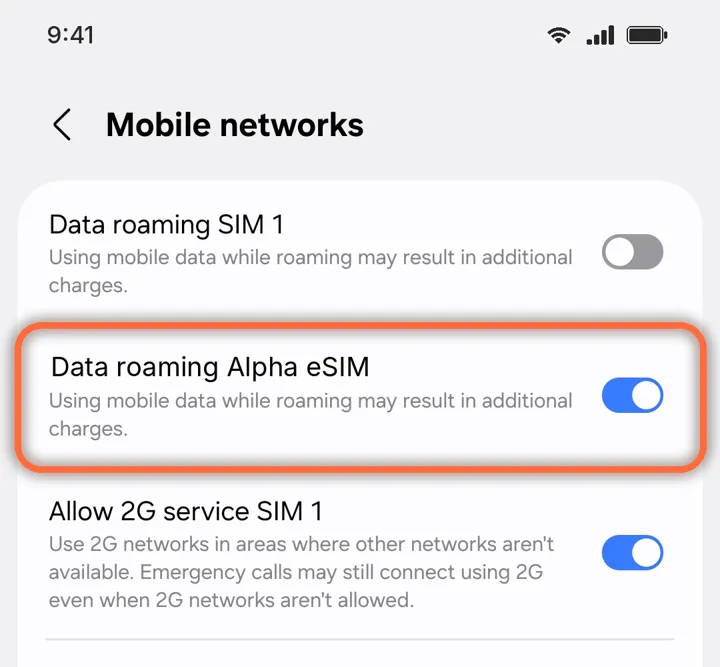
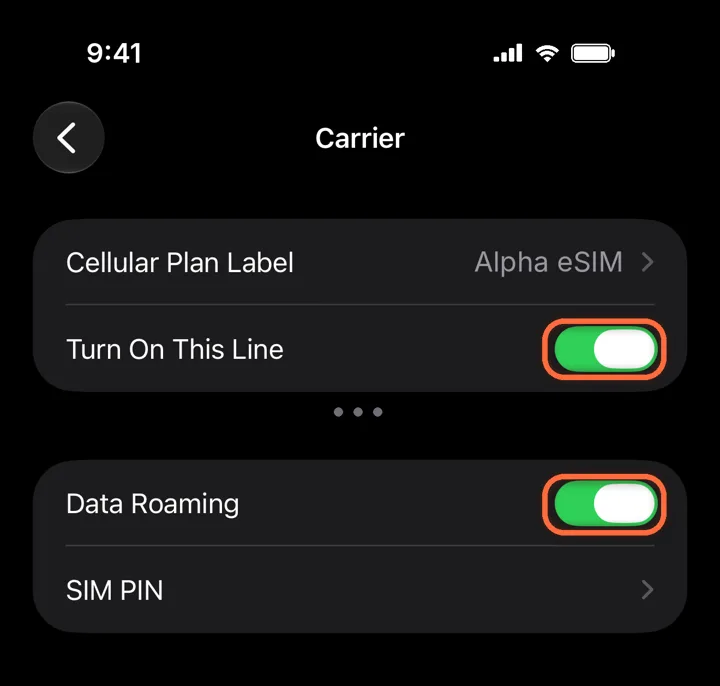
Turn on the line and Data Roaming
Alpha eSIM›Turn On This Line+Data Roaming
Both switches must be green. A travel eSIM always uses roaming, so without Data Roaming it cannot connect.
Roaming is free on Alpha eSIM. Leave Data Roaming off on your home line, so it cannot charge you.
Each QR works on one phone only. Do not scan it with a second phone.
NEXTInstall on Android
Did this help?