 Alpha eSIM
About 1 minute
Install your eSIM
Do it before you fly, on Wi-Fi. Your plan starts when you connect.
1
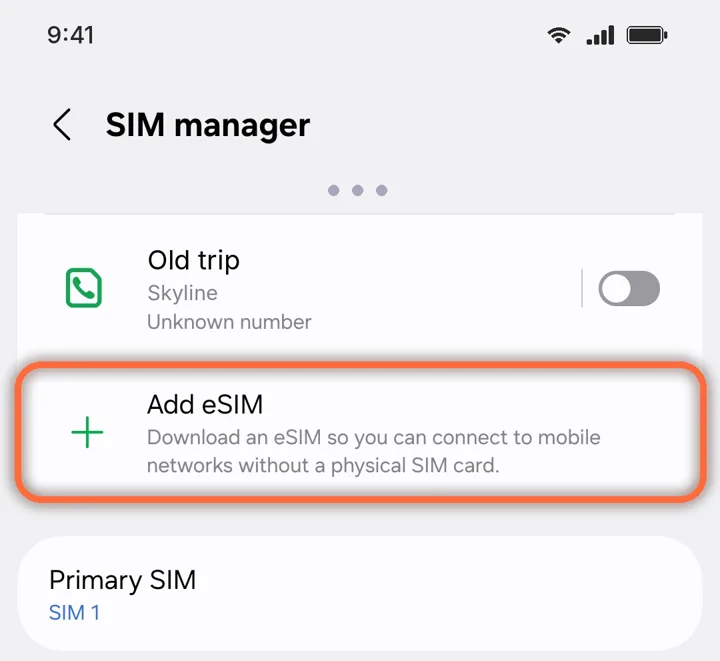
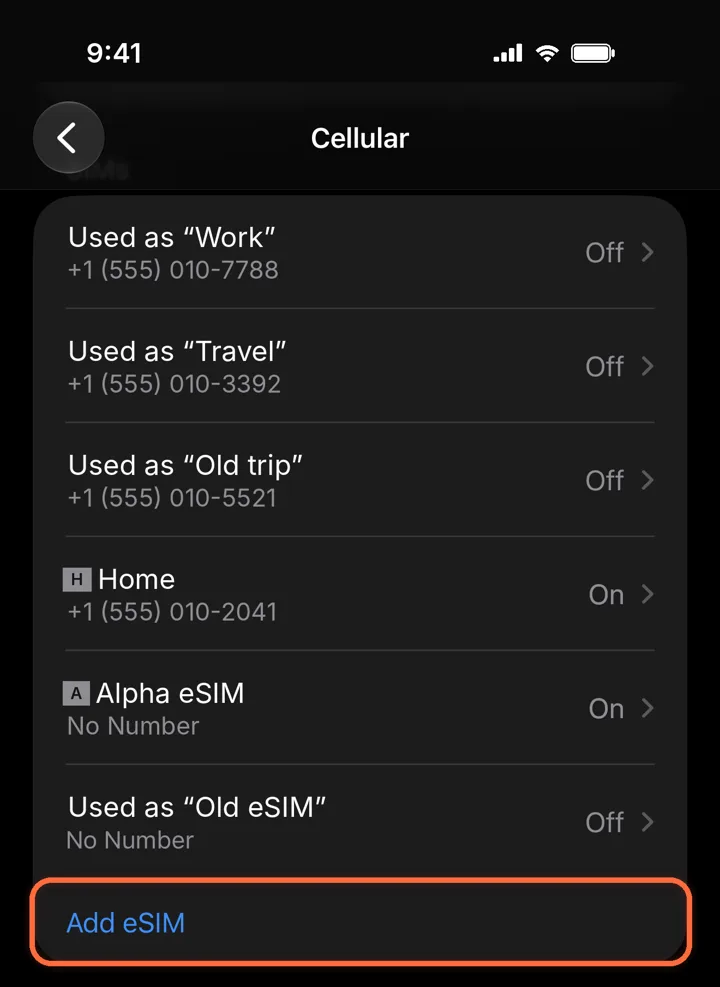
Open Add eSIM
Settings›Cellular›Add eSIM
Scroll down and tap Add eSIM. On the iPhone you will travel with you can skip the QR: open My eSIMs and tap Install on this iPhone.
2
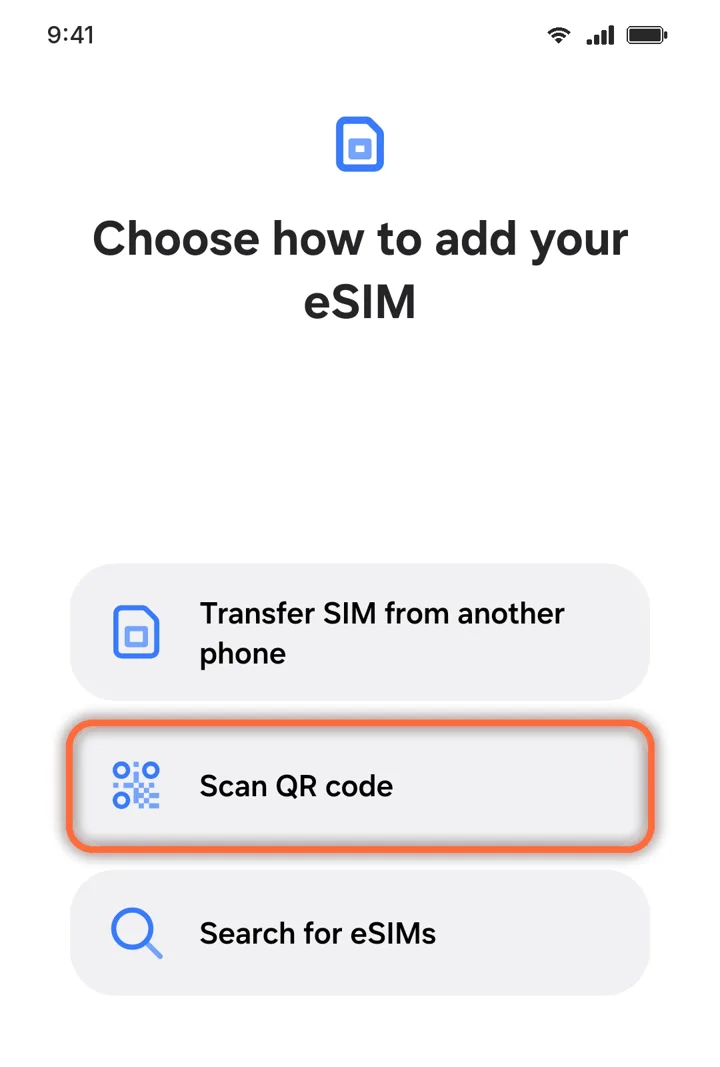
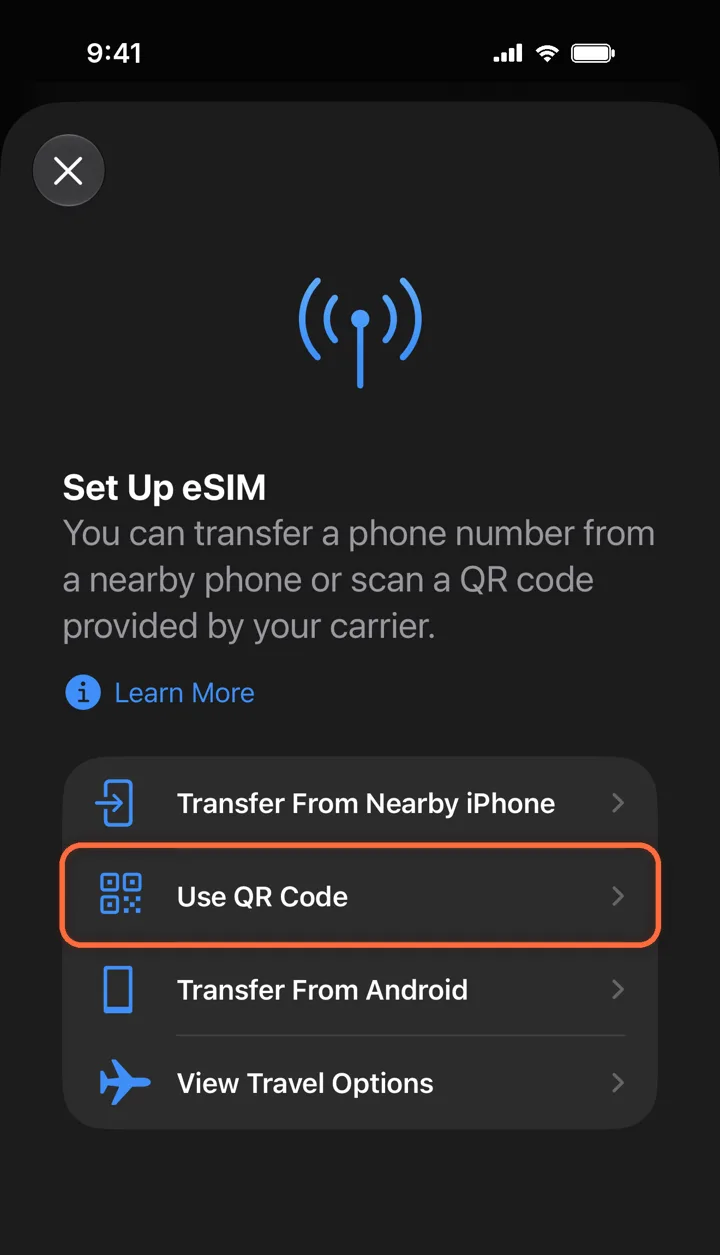
Choose Use QR Code
Set Up eSIM›Use QR Code
Point the camera at the QR code. Tap Continue and wait about a minute.
3
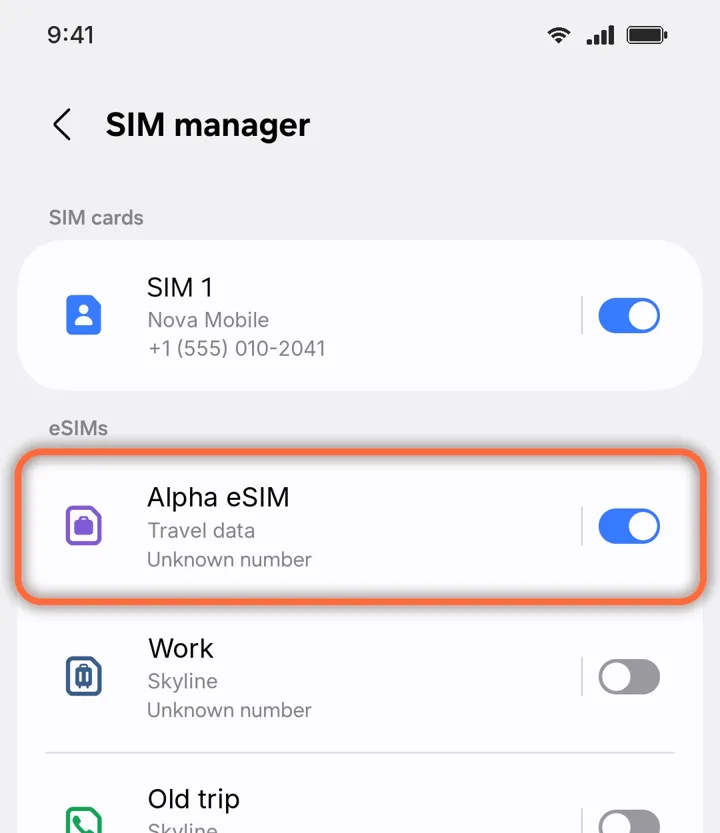
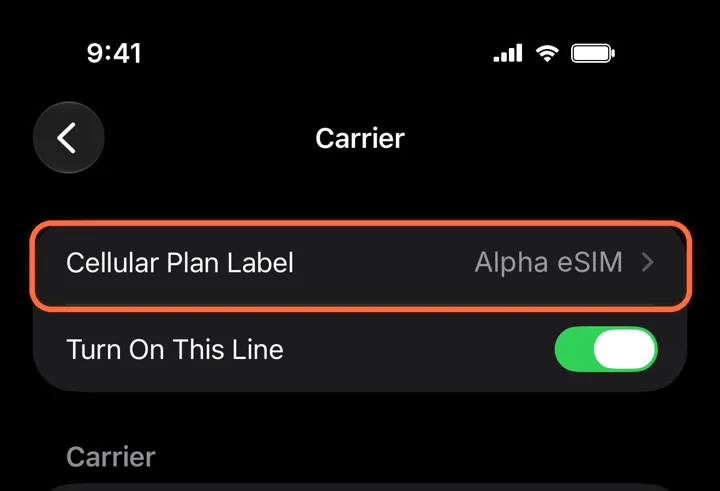
Name it and pick your lines
Cellular Plan Label›Alpha eSIM
Label the new line Alpha eSIM so it is easy to find. Keep your home line for calls and texts.
4
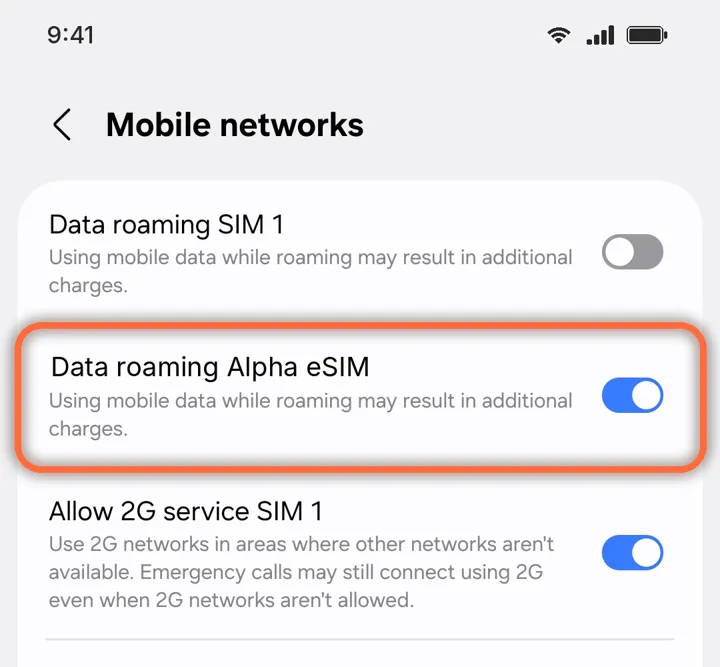
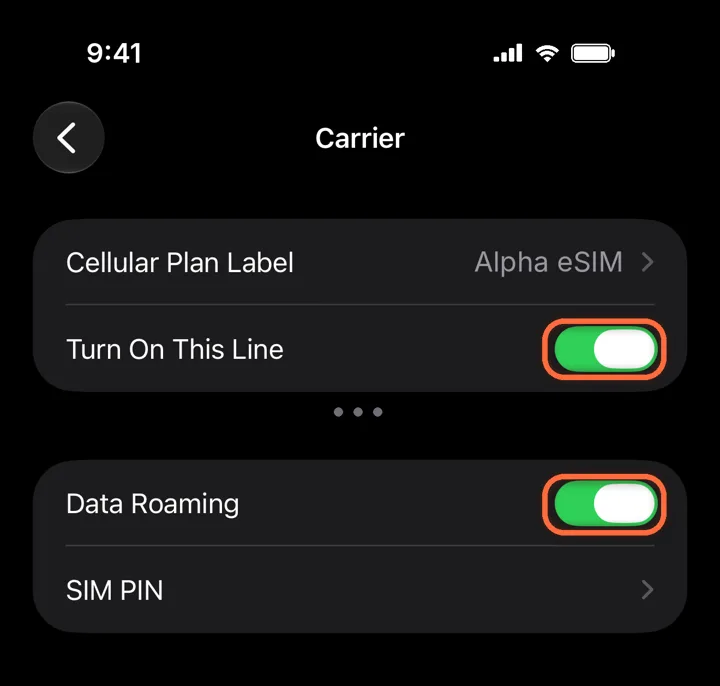
Turn on the line and Data Roaming
Alpha eSIM›Turn On This Line+Data Roaming
Both switches must be green. A travel eSIM always uses roaming, so without Data Roaming it cannot connect.
Roaming is free on Alpha eSIM. Leave Data Roaming off on your home line, so it cannot charge you.
Install on Wi-FiBefore your flight, at home or the airport.
Do not delete itAn eSIM can usually only be installed once.
Keep your home SIMCalls and texts still reach you.
Stuck on a step?Our team can walk you through it.