Enter the codes by hand
2 min read
If the QR will not scan, type two codes instead. Both are on the eSIM page in My eSIMs and in your email.
1
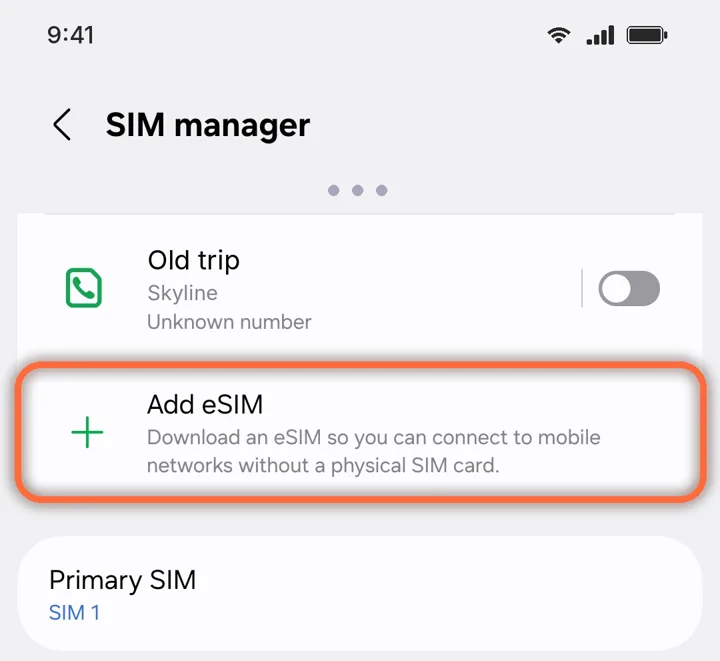
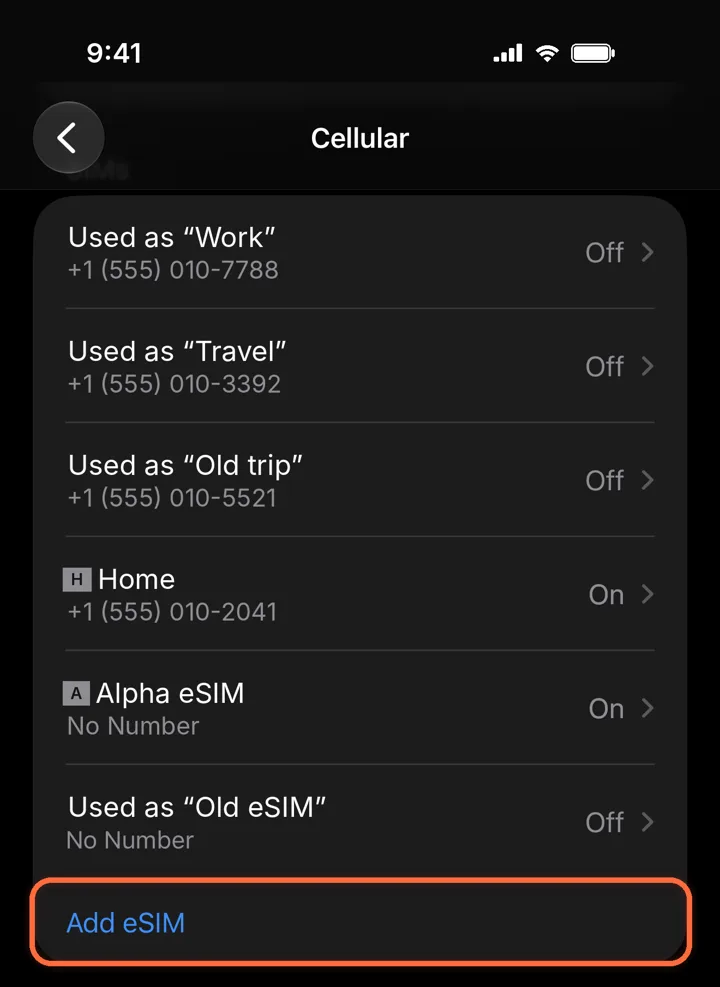
Open Add eSIM
Settings›Cellular›Add eSIM
Scroll down to the end of your SIMs and tap Add eSIM.
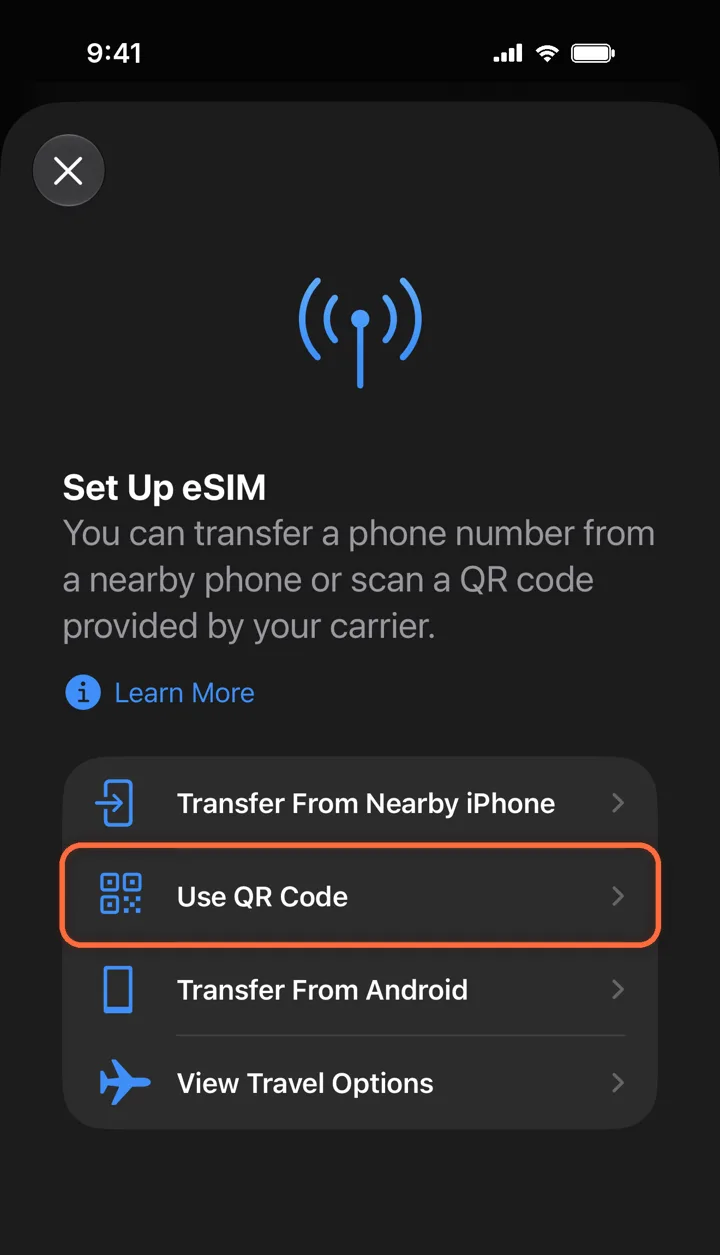
2
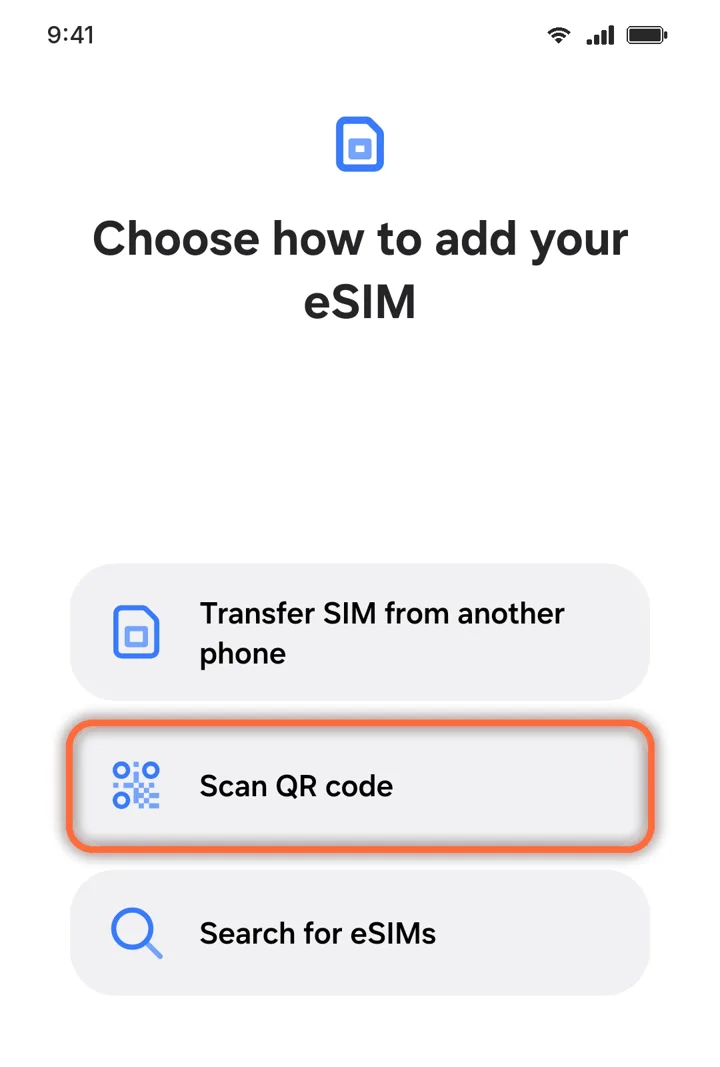
Choose Use QR Code
Set Up eSIM›Use QR Code
The camera opens. You do not need to scan anything.
3
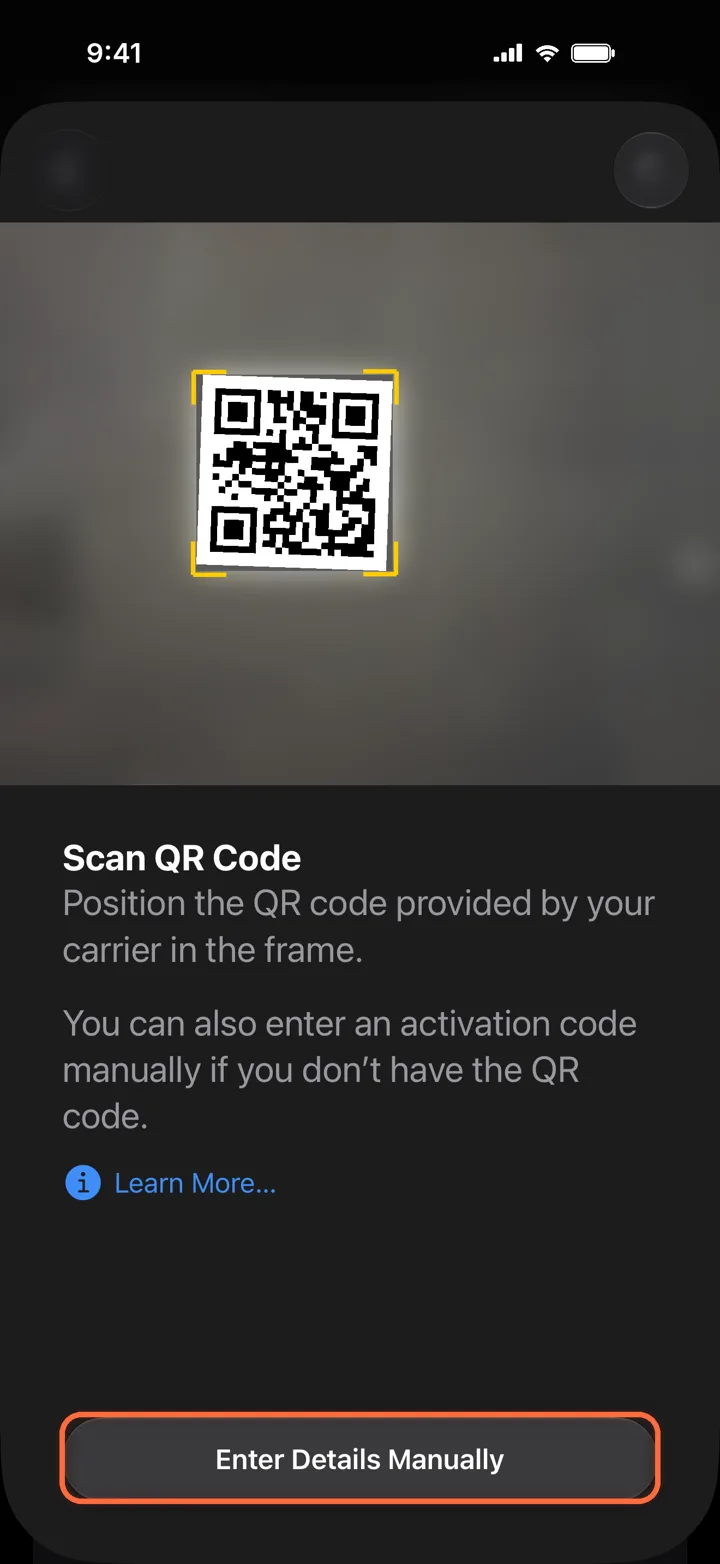
Tap Enter Details Manually
Scan QR Code›Enter Details Manually
It is at the bottom of the camera screen.
4
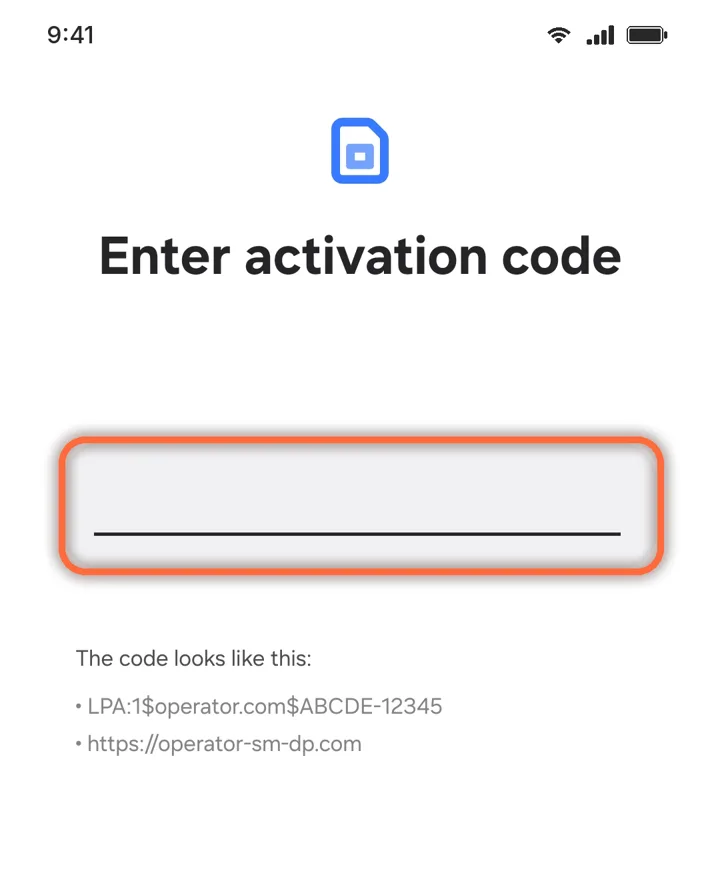
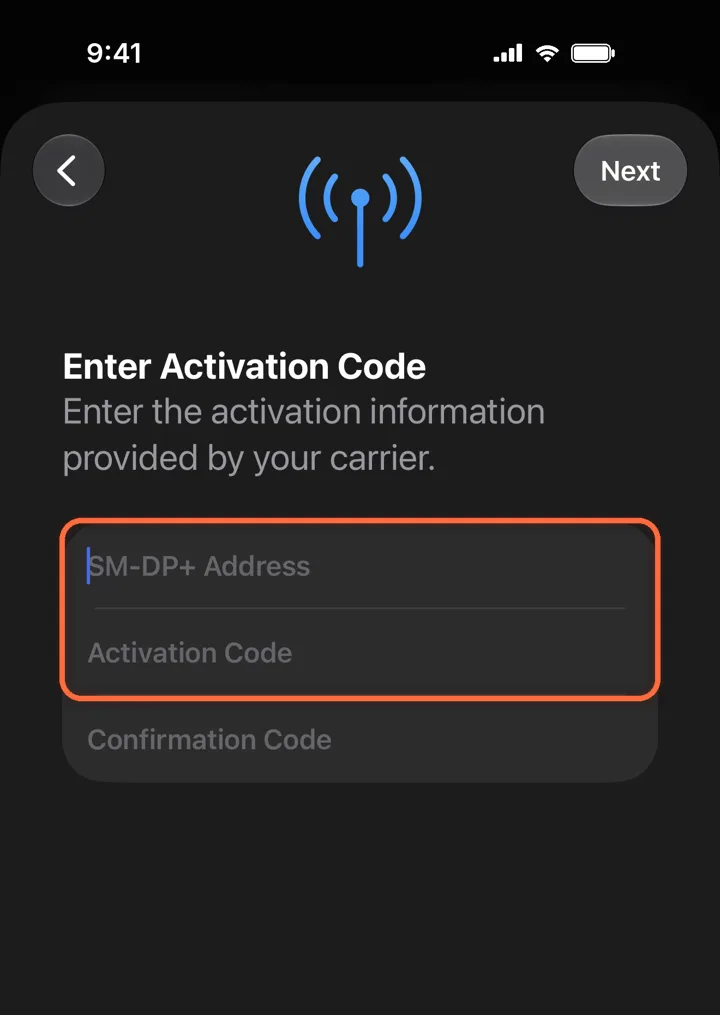
Paste the two codes
SM-DP+ Address+Activation Code
Paste the SM-DP+ address and the activation code. Leave Confirmation Code empty, then tap Next.
Did this help?